Make a 4-Week Plan Lock Screen
Split the month into four weeks and pin each week’s goal to your lock screen. With four big boxes, even short goals look large and clear.
Make one now →How it works, step by step
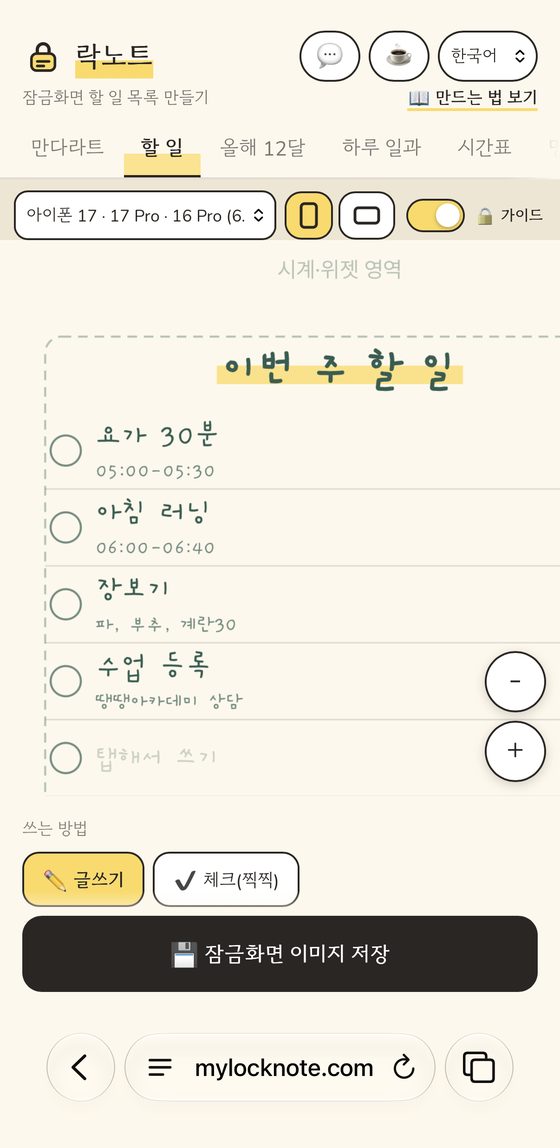
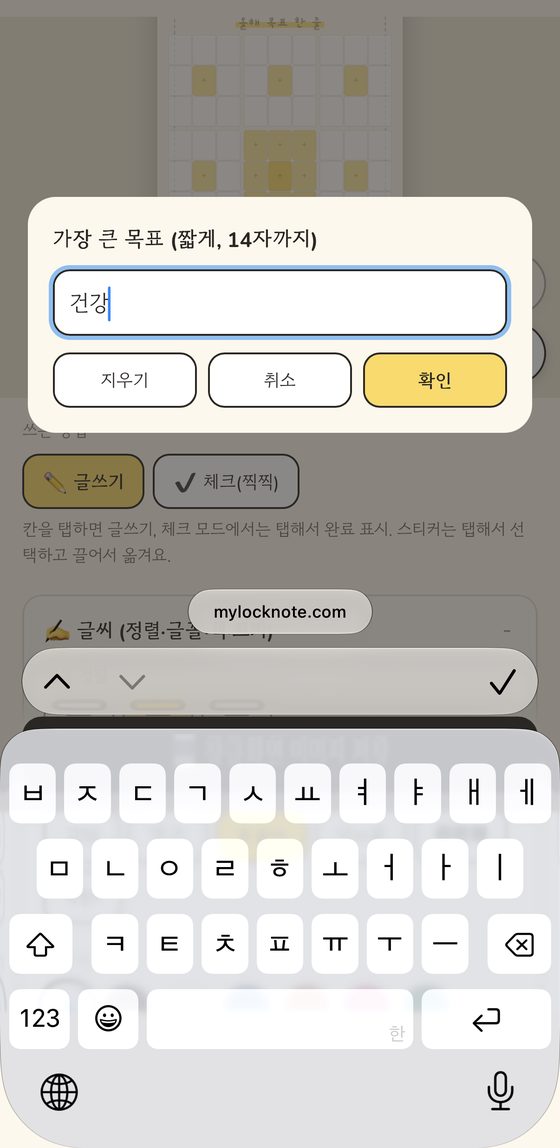
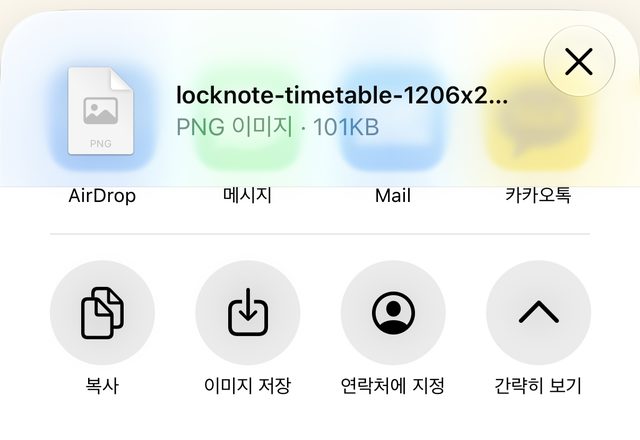
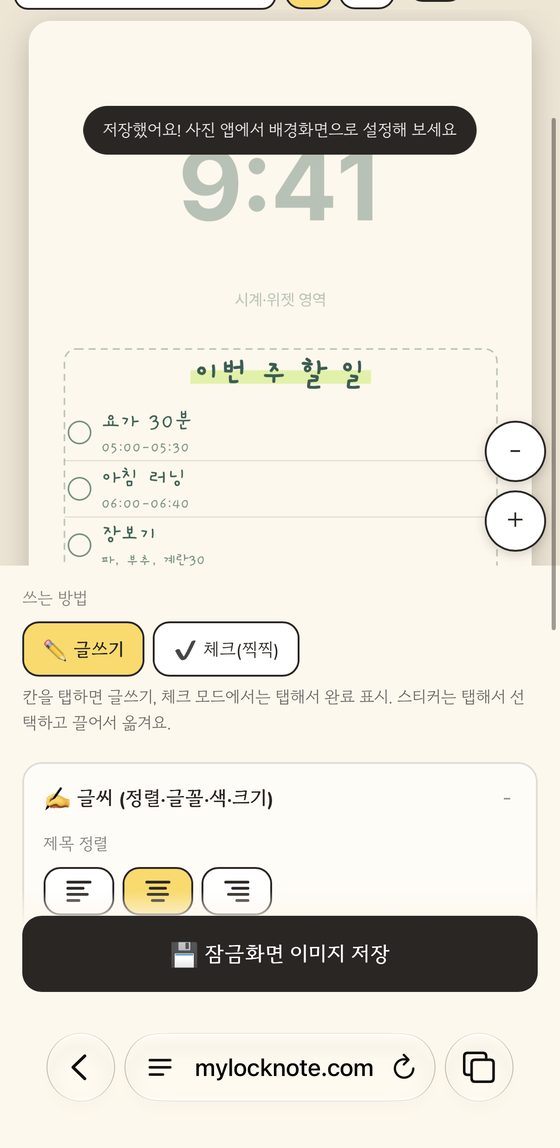
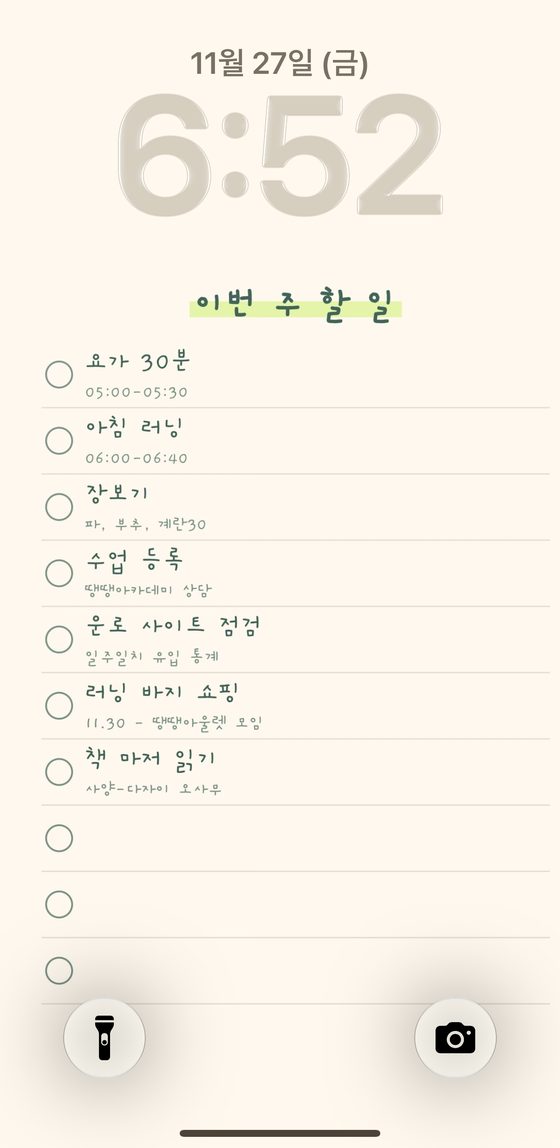
Screenshots are from the Korean version; the layout is the same in every language.
How to make it
- Name your planTap the title at the top and rename it, like “4-week plan”, “Exam prep” or “4-week challenge”.
- Write a goal for each weekTap the Week 1–4 boxes and write that week’s goal. The date range starts from this week’s Monday automatically.
- Add a small noteAdd a one-line note under a goal, like “3x a week” or “after work”.
- Check off and saveIn Check mode, tap a finished week to highlight it off. Then save and set it as your lock screen.
Set it as your lock screen
- Pick your phone model and tap “Save lock screen image”.
- On iPhone, choose “Save Image” in the share sheet. On Android it goes to your gallery.
- iPhone: Photos → the image → Share → “Use as Wallpaper”. Android: Gallery → the image → “Set as wallpaper”.
Tips
- One goal per week is easier to keep.
- Keep Week 1 light and make Week 4 your wrap-up goal.
- Save again every Monday so the dates match the current week.
FAQ
How are the dates decided?
The four weeks start from this week’s Monday, based on your device’s current date.
How long can a goal be?
Up to 30 characters. Longer text shrinks automatically to fit.
Do I need to sign up?
No. It is free and needs no account.